Outputs
The format follows the extension of -f/--output. Without -f the tool writes aws-security-viz.html. An unknown
extension is rejected with a message listing the supported ones.
| Extension | Format | Needs Graphviz |
|---|---|---|
.html, .htm |
Self-contained interactive viewer (default) | No |
.json |
Nodes and edges as data | No |
.mmd |
Mermaid flowchart | No |
.dot, .gv |
Graphviz DOT text | No |
.png, .svg, .pdf, .jpg, .jpeg, .gif, .webp, .bmp, .tiff, .ps, .eps |
Rendered image | Yes (dot on the path) |
The older --renderer flag is deprecated. It still works and prints a warning; use the extension instead.
Edge colours follow the same scheme in every format: blue for ingress, red for egress, and a thick dashed edge for
(crimson in the images, magenta in the HTML viewer) risky public ingress. With --show-unused, groups that no network
interface uses are marked: dashed grey in DOT, an unused class in Mermaid, and unused: true in JSON and HTML data.
Colour is never the only signal: the viewer legend and the JSON risky flag state the same facts in text.
HTML viewer
-f out.html writes one file with Cytoscape.js, its layout libraries and the graph data inlined. Open it from disk in a browser; no web
server and no network access are needed.
aws_security_viz -o security_groups.json -f viz.html
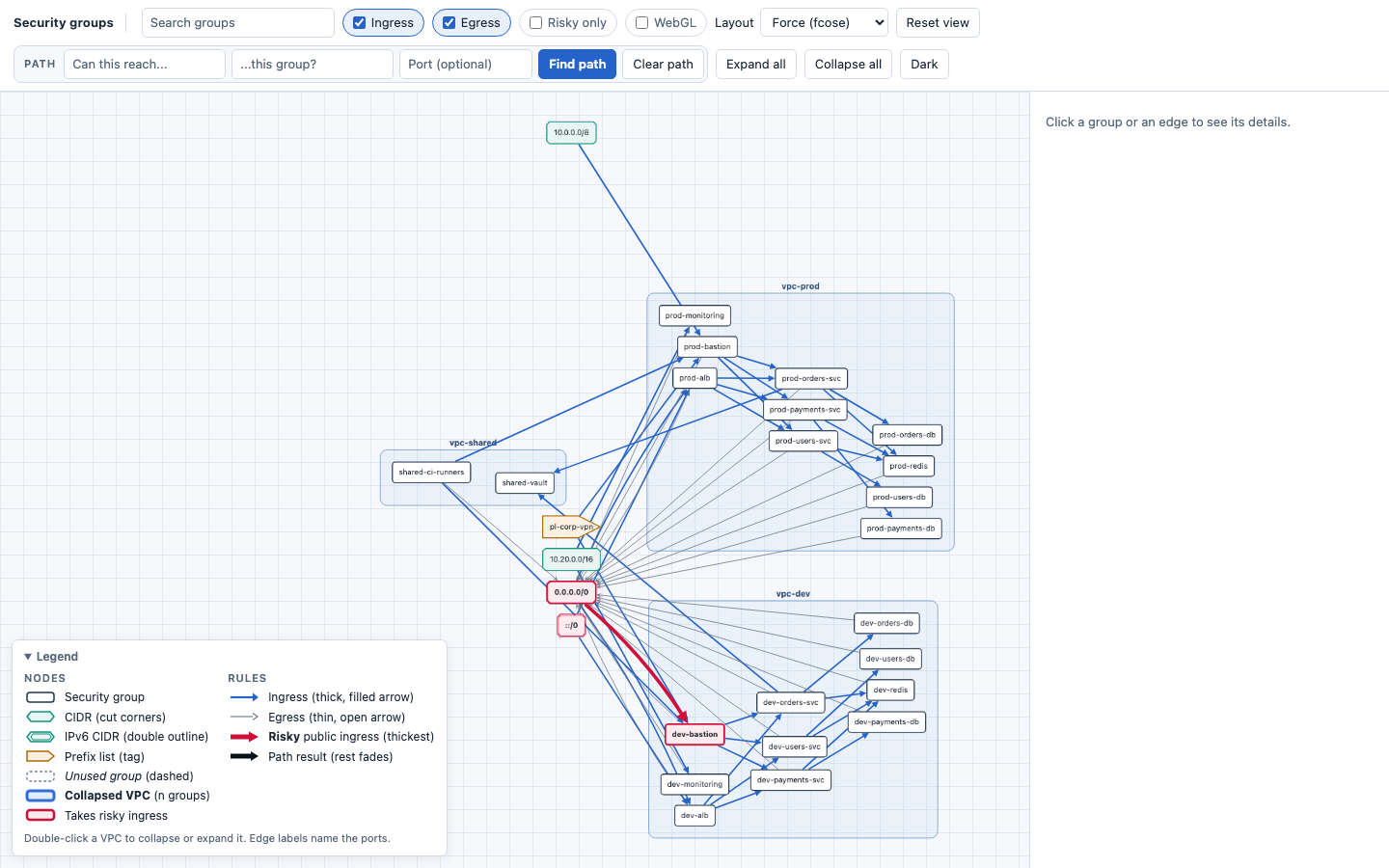
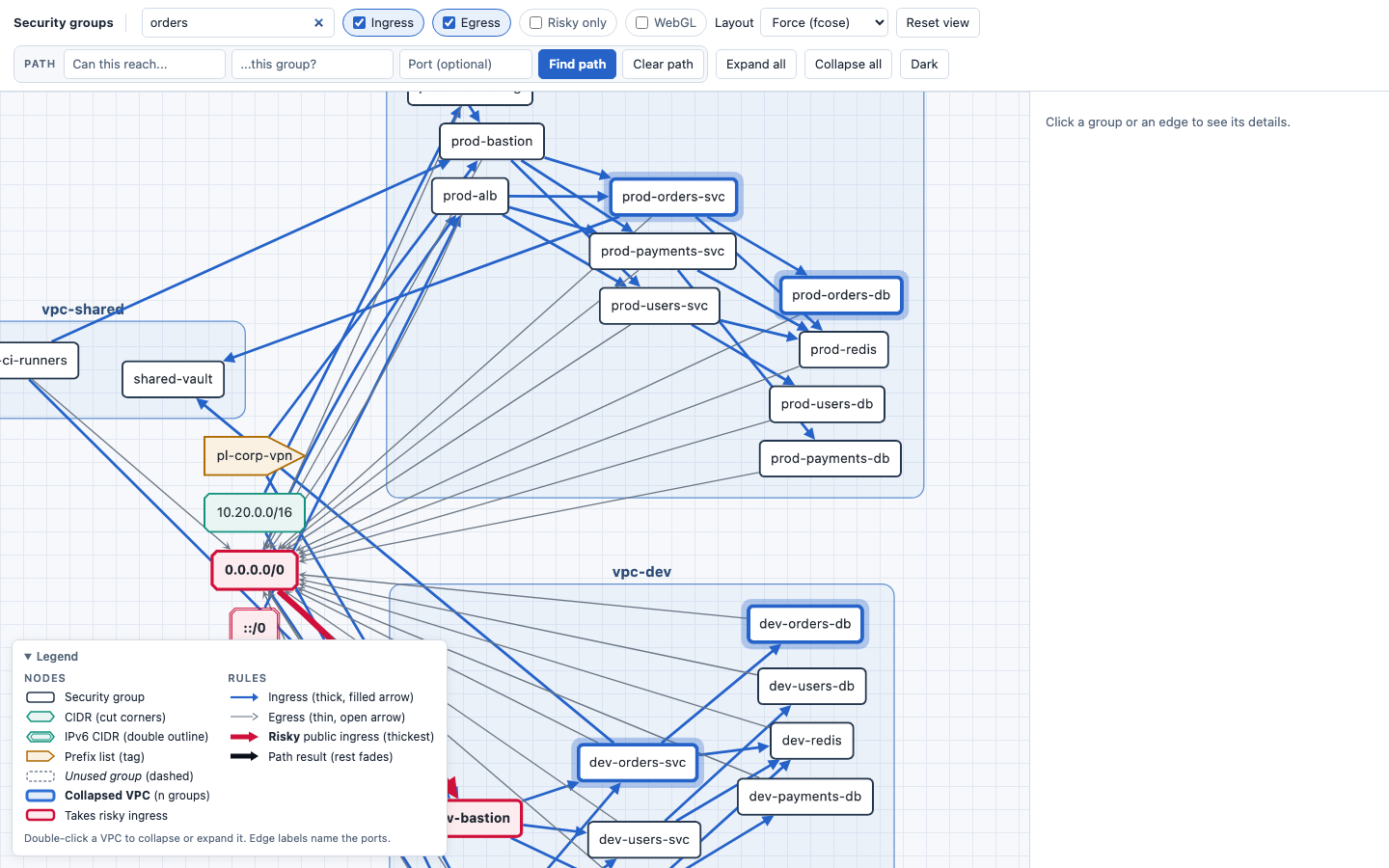
- Search. Type in the search box to find and centre matching groups.
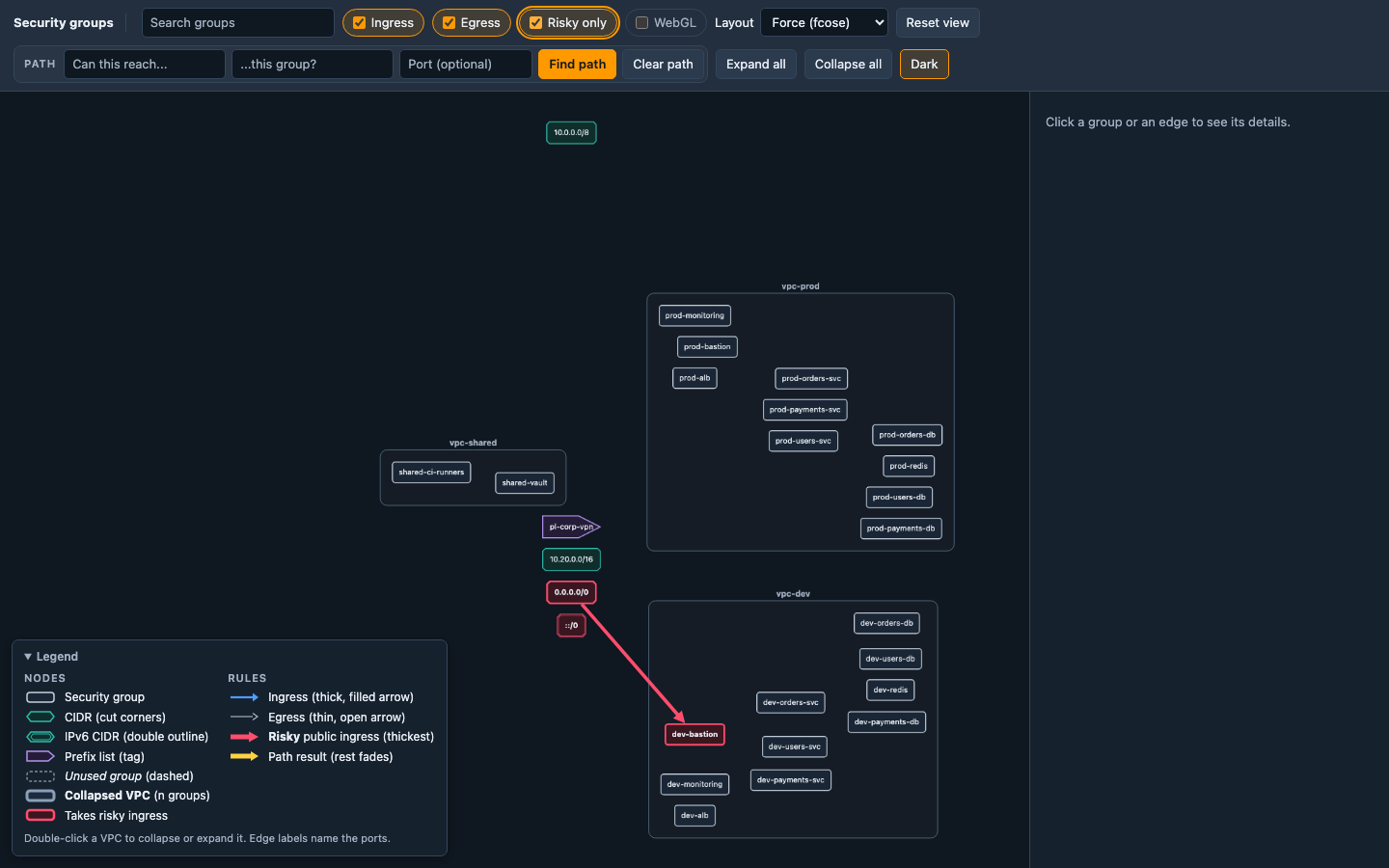
- Ingress, Egress and Risky only toggles. Risky only keeps the risky edges and hides the rest.
- Reset view clears the search and fits the whole graph.
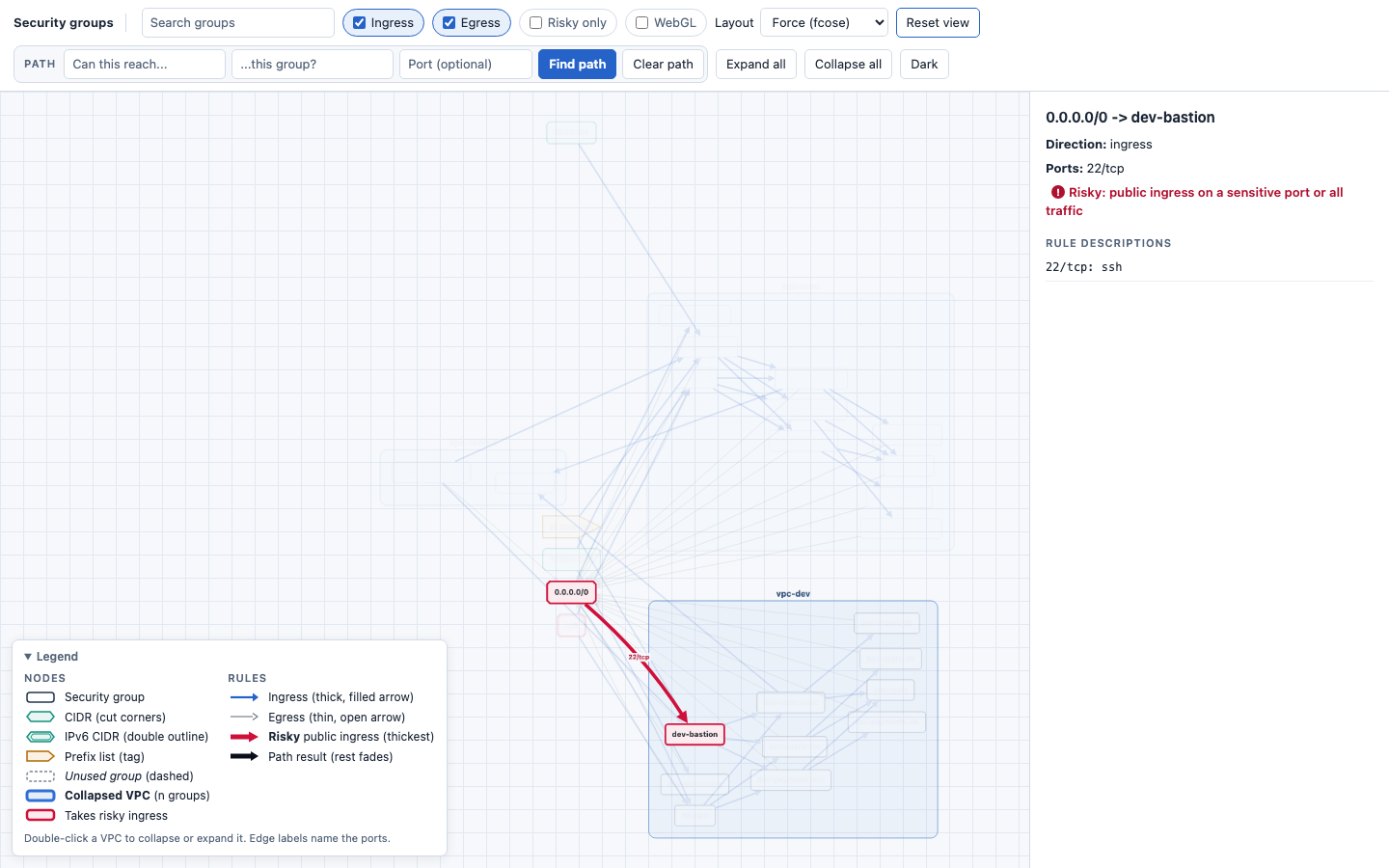
- Click a group or an edge to see its details. For an edge the panel shows the direction, the ports, any rule descriptions, and a risk note.
- The legend at the bottom left of the graph explains every node and edge style. It starts open when the window is tall and closed otherwise; the graph is always fitted above it.
- Collapsing. Graphs with more than 150 security groups in VPCs (CIDR and other peers are not counted) open with every VPC collapsed into one node that shows its group count and how many rules stay inside it. Edges to other VPCs and peers are merged into one edge per direction, labelled with the number of rules; its details list the ports and rule descriptions. Double-click a VPC to expand or collapse it, or use Expand all and Collapse all. Only the VPC you expand is laid out again. Press Enter in the search box to open the VPCs holding a match (a single match opens its VPC straight away); clearing the search restores the previous view. Smaller graphs open fully expanded.
- WebGL. When more than 2,000 elements (nodes and edges) are on the canvas, for instance after Expand all on a large account, the viewer switches to Cytoscape's experimental WebGL renderer, which draws large graphs much faster. The WebGL checkbox in the toolbar switches it on or off at any size; after you use it, the size rule no longer changes the renderer. The checkbox is disabled when the browser has no WebGL 2, and the viewer then keeps the canvas renderer. The renderer switches on the elements that are showing, so the filter checkboxes can move it too. WebGL draws every arrowhead the same and has no dashed lines, so the width of an edge is what tells ingress, egress and risky edges apart there; risky edges are the thickest, red and have a larger arrowhead in both renderers, and the details panel still marks them as risky. If the browser takes the WebGL context away, the viewer carries on with the canvas renderer.
- Can X reach Y. Type a source and a target (a security group, CIDR or other peer, by name or id; the boxes suggest matches) and press Enter or Find path. The answer comes from the security group rules, the way AWS evaluates them, and not from the drawn edges, so the Ingress, Egress and Risky only toggles never change it (the path stays visible whatever they say). The shortest path is drawn in the theme's path colour (yellow in the dark theme, black in the light one) and the rest dimmed; collapsed VPCs on the path are opened, the view is fitted to the path, and Clear path (or Reset view) puts back the collapsed VPCs, zoom and position. The exact rules:
- A hop from group A to group B is allowed only when A has an egress rule that allows B and B has an ingress rule
that allows A. The ports of the hop are what both sides have in common: protocols must match (tcp, udp, icmp and
icmpv6 by type and code, other protocols by number),
allmatches everything, and port ranges are intersected. A rule on one side only is not a hop. When there is no path, the message names the nearest blocked hop and the missing side, or says that the two sides share no traffic. - A rule names a group by id (a rule on the group itself, a self reference, is fine). A rule on
0.0.0.0/0allows any IPv4 address, so it covers every group. Anything else about addresses is not in the data (instance addresses, what a prefix list holds, whether instances have IPv6), so a hop that rests on it is "possible": an egress or ingress rule on another CIDR or on a prefix list when the other end is a group, a rule on::/0or another IPv6 CIDR when the other end is a group (it holds only if the instances have IPv6 addresses), and a CIDR that covers only part of the other end's range (10.0.0.0/8 against a rule on 10.0.0.0/16). The answer then reads "Possibly reachable", not "Reachable", and the panel gives the reason for each such rule. A hop also needs both sides in a common address family: an egress rule on0.0.0.0/0and an ingress rule on::/0never meet, and the message says so. Group references are the same in both families. - A CIDR, IPv6 range or prefix list is an endpoint, never a stop along the way. A CIDR source reaches a group when
one of the group's ingress CIDRs contains it (10.1.0.0/16 is inside 0.0.0.0/0), IPv4 and IPv6 alike, and a group
reaches a CIDR target when one of its egress CIDRs contains it. A prefix list matches a rule on the same prefix
list id, a rule on
0.0.0.0/0, and is possible against any other CIDR rule or prefix list (the lists may overlap). A name given to a CIDR in thegroupssetting stands for the CIDRs it covers: the answer is "reachable" only when all of them are matched. CIDRs that only egress rules name can be picked as targets even when egress edges are not drawn (--no-egress). - The port box is optional:
443(tcp and udp),443/udp,1000-2000,icmp,icmp 8orproto 50(a protocol number; 1, 6, 17 and 58 mean icmp, tcp, udp and icmpv6). With it, every hop must allow the port; anything else in the box is rejected. Without it the ports are listed per hop and the ports open along the whole path are not computed. - The panel lists each hop with the egress rules on its source, the ingress rules on its target, the allowed ports and the rule descriptions.
- A group as both source and target is answered from its own rules: it needs an egress rule and an ingress rule that both allow itself, such as a self-referencing ingress rule together with the default egress.
- Rules that are not in the input are unknown, never an allow or a deny. A group the input only mentions (another
account, say) has unknown rules, and so has a group whose input has no
IpPermissionsorIpPermissionsEgresskey at all (an empty list denies everything and is not unknown). A hop that depends on such rules is "possible". When nothing gets through, the report names the blocked hop on the path with the fewest blocked hops, which is not always the hop between the two ends.
Security groups are only part of the picture, so the answer does not take into account network ACLs, route tables,
instance addresses, VPC peering or transit gateway routing, or anything else outside the security group rules. A
reachable answer means the security groups do not stop it. Groups left out of the report (by the exclude list or
by --source-filter and --target-filter) are not seen, and a report written with --obfuscate has no rules, so its path boxes are disabled.
- Layouts. The Layout menu in the toolbar redraws the whole graph; collapse state, the selected group, search hits, the toggles and a path on screen stay as they are, with either renderer. The layouts are deterministic: the same report always draws the same picture. Boxes are never drawn over each other, and every layout fits the graph in the view. Rules point the way traffic is allowed to flow, so a group's tier is its hop count from the outside: external peers (CIDRs, IPv6 ranges and prefix lists) are tier 0, a group an external peer can reach is tier 1, what that group reaches is tier 2, and groups no external peer reaches start at tier 1.
- Force (fcose), the default. Region and VPC boxes are kept; inside a VPC, a rule that leads from one tier to a later one (up to tier 3: entry, app, data) places its source left of its target, so the tiers read as columns from left to right; the external peers share one column; disconnected parts are packed side by side.
- Traffic flow. Layers from left to right along the rule direction: entry groups, then what they reach, and so on.
With VPCs open, each VPC is layered on its own (dagre) and the VPC boxes are packed in rows, so a large account
fills the view instead of a narrow strip; rules between VPCs are drawn but do not influence the layers. With
every VPC collapsed, dagre ranks the VPC nodes themselves. Rules to the external peers are left out of the
layering (every group allows egress to
0.0.0.0/0by default, which would flatten the layers), and the peers are stacked in their own column on the left, each at the height of the groups it talks to. A rule that closes a cycle points backwards. - Exposure rings. The public peers (
0.0.0.0/0,::/0) are together at the centre, the groups they reach directly are on the first ring, what those reach on the second, and so on; the other external peers are on the first ring, and groups nothing external reaches are on the outermost ring. The groups of one VPC sit next to each other on a ring. Rings cannot respect VPC boxes, so VPC and region boxes are not drawn in this layout and cannot be selected. A collapsed VPC is still one node: double-click it to open it. To close one again, select a group in it and use the Collapse button in the panel, or use Collapse all. - Grid within VPC. Each VPC is a grid with one row per tier (a long tier wraps), the VPCs are packed in rows, and the external peers are in a column on the left.
Labels are hidden when zoomed out too far to read them, except those you asked for: an edge's port label is hidden
until you hover the edge or select it, and selecting a group shows its own label, its neighbours' and its edges'
labels at any zoom. Picking the force layout again draws the same picture as opening the report. A group's panel
has a Collapse button for its VPC, in every layout. Selecting a group or edge fades everything
outside its neighbourhood instead of hiding it.
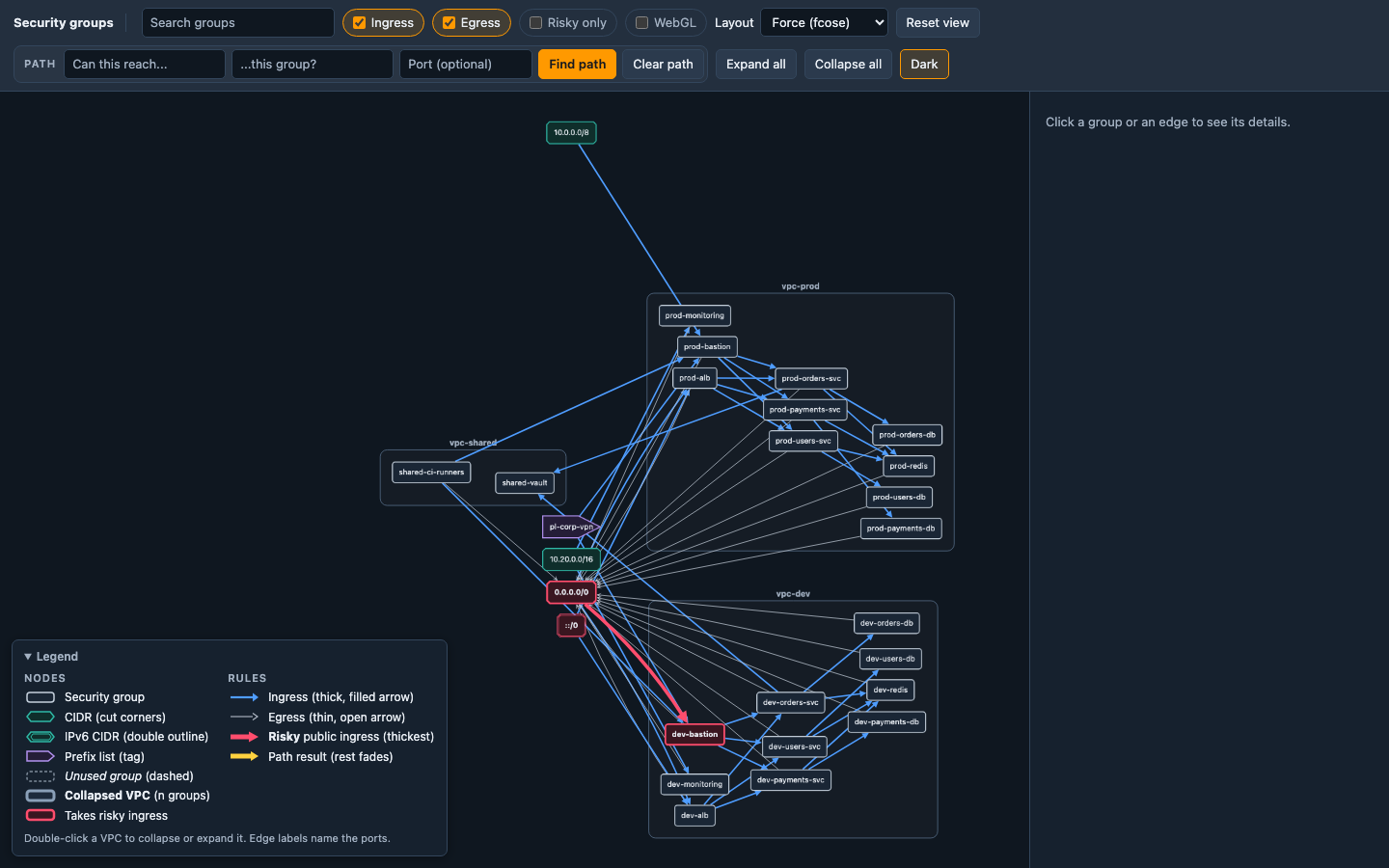
10. Themes. The viewer has a light theme (Blueprint: white chrome, a drafting grid and soft tinted VPC boxes) and a dark
theme (Console: squid-ink chrome and an orange accent). It follows the browser's prefers-color-scheme; the toolbar
button at the right ("Dark") switches by hand, and the choice is kept until the page is reloaded. Switching only
recolours the page: nothing is laid out again, and the zoom, selection, collapsed VPCs, search, toggles, a shown
path and the renderer stay as they are, with canvas and WebGL alike. Kinds are told apart by shape and width as
well as colour, and the legend lists them: security groups are rounded boxes, CIDRs have cut corners (IPv6 a
double outline), prefix lists are tags, unused groups are dashed and italic, a collapsed VPC has a thick border,
and groups that take a risky ingress rule (and the VPCs holding one) have a red outline on a red tint. Ingress
edges are thick with a filled arrowhead, egress edges thin with an open one, risky edges the thickest. Graph
colours keep a contrast of at least 3:1 against the canvas (4.5:1 for text). No web fonts are loaded: the page
uses the system font stack. Reports made with --obfuscate keep these shapes.
The page has a Content-Security-Policy and makes no network requests; see Security.
Warning
The output describes your network exposure. Treat the files as sensitive, or use
--obfuscate before sharing them.
Images
Image formats pipe DOT through the dot binary, so Graphviz must be installed. The layout engine defaults to dot;
change it with -y/--layout (dot, neato, sfdp, fdp, twopi, circo) or :format: in opts.yml.
aws_security_viz -o security_groups.json -f viz.svg
aws_security_viz -o security_groups.json -f viz.png --layout neato
JSON
Nodes carry the security group id as id and the name as label; edges carry source, target, label and, when
risky, "risky": true. With several regions each node also carries its region.
aws_security_viz -o security_groups.json -f viz.json
{"nodes":[{"id":"sg-appgrp","label":"app"},{"id":"0.0.0.0/0","label":"0.0.0.0/0"}],"edges":[{"id":"0.0.0.0/0-sg-appgrp","source":"0.0.0.0/0","target":"sg-appgrp","label":"22/tcp","risky":true}]}
The example is shortened to two of the five nodes.
Mermaid
aws_security_viz -o security_groups.json -f viz.mmd
flowchart LR
  n0["app"]
  n1["8.8.8.8/32"]
  n2["amazon-elb-sg"]
  n3["0.0.0.0/0"]
  n4["db"]
  n0 -->|"5984/tcp"| n4
  n1 -->|"80/tcp"| n0
  n2 -->|"80/tcp"| n0
  n3 -->|"22/tcp"| n0
  linkStyle 0 stroke:#1f5fbf
  linkStyle 1 stroke:#1f5fbf
  linkStyle 2 stroke:#1f5fbf
  linkStyle 3 stroke:#dc143c,stroke-width:4px,stroke-dasharray:6 3
Paste the file into a Markdown code fence tagged mermaid; GitHub renders it. Mermaid's defaults allow 500 edges and
50,000 characters of text. When the diagram exceeds either, the tool prints a warning and GitHub or mmdc may refuse
to render it. Use the HTML viewer for large accounts.
DOT
.dot and .gv files are the DOT text itself and need no Graphviz:
aws_security_viz -o security_groups.json -f viz.dot
digraph "G" {
  graph [overlap="false", splines="true", sep="1", concentrate="true", rankdir="LR"];
  "sg-appgrp" [label="app"];
  "0.0.0.0/0" [label="0.0.0.0/0"];
  "0.0.0.0/0" -> "sg-appgrp" [style="dashed", color="crimson", label="22/tcp", penwidth="3"];
}
The example is shortened to two of the five nodes.