Preferences and the server dialog
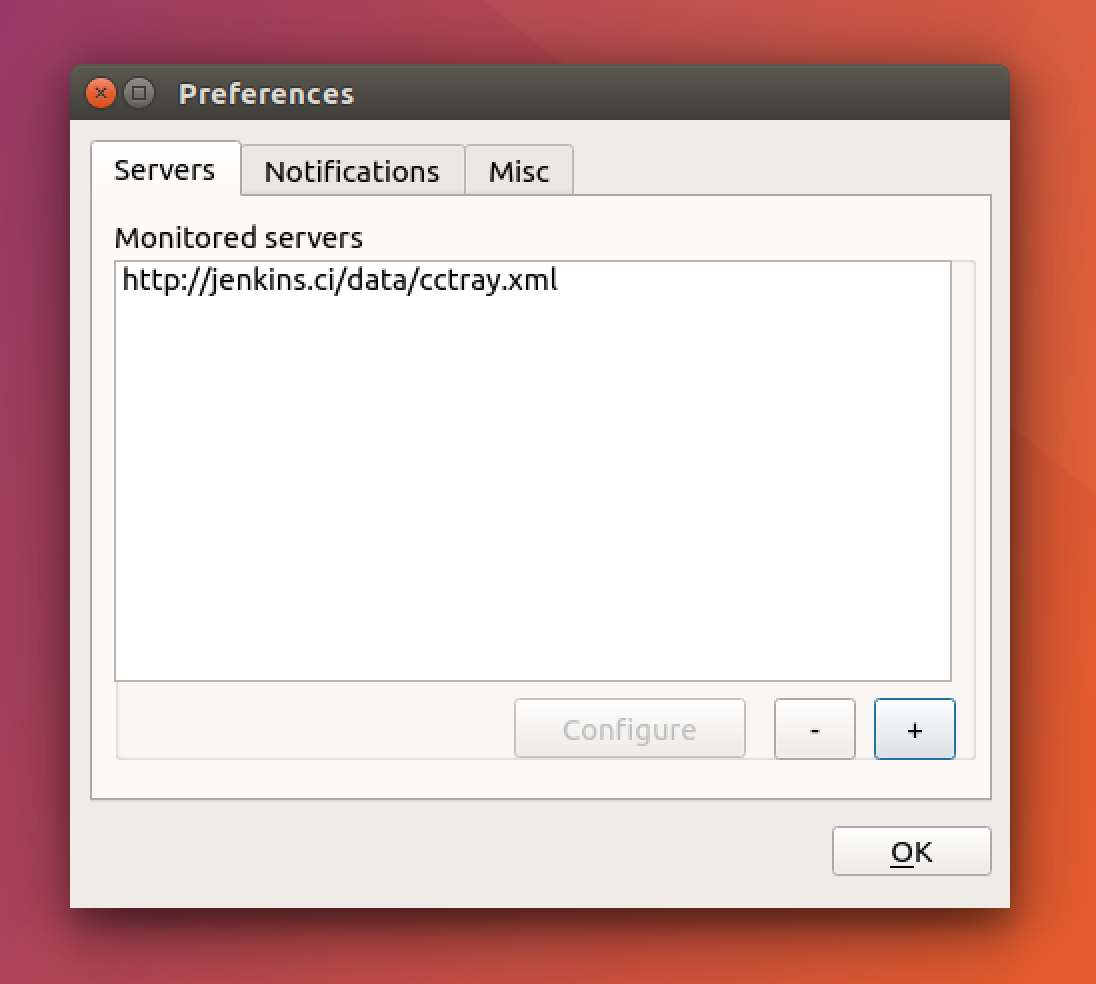
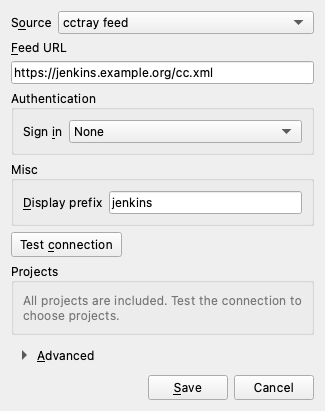
A server is a cctray feed URL or a GitHub repository, and BuildNotify watches the projects you tick in it. A feed URL must start with http:// or https://. A URL typed without one, such as ci.example.org/cc.xml, gets https://.
Add a server with Add... on the Servers tab of Preferences, or with Add a server... in the tray menu before the first one exists. Under Sign in, choose None, Username and password or Token (a Bearer token, without the Bearer keyword). Credentials are kept in the system keyring. Without one, the dialog says so and asks you to install the keyring package.
If a server's certificate isn't trusted, the dialog asks whether to connect anyway. Accepting turns off certificate checks for that server only. The dialog then opens Advanced and shows Certificate checks off for <host> with a Turn checks back on button, and checks come back on if you change the host.
The Advanced section at the bottom of the dialog holds Time zone for feed times and the certificate checks. It stays collapsed unless a time zone is set or certificate checks are off. The time zone defaults to Use the feed's offset, and you can type part of a zone name, such as Kolkata, to find it.
Save works without testing the server first, so you can add one that is down, and all of its projects are included. Test connection shows how many projects the feed has, or a short error, and then lists them so you can untick the ones you don't want. The All (N of M) box shows a partial state while some are unticked, and ticking it sets every project the filter field currently shows. Projects added to the feed later are included automatically.
The Servers tab of Preferences lists the monitored servers, one row each with its name (the prefix, else the host), source kind, target and the number of projects found by the last poll. GitHub rows show the repository and workflow@branch. Add... (Insert), Edit... (Enter or double-click) and Remove (Delete) change the list, and Remove asks first.
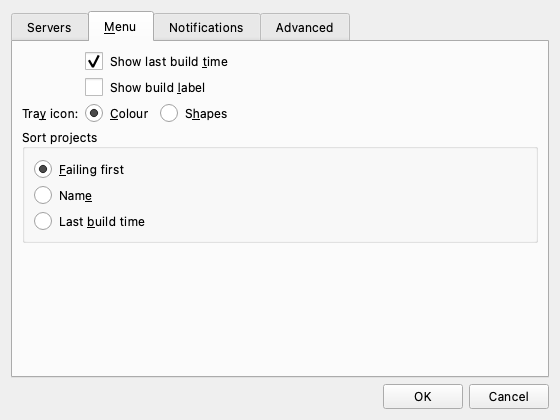
The Menu tab sets how the tray menu looks: show the last build time and label next to each project, pick colour or shape tray icons (single-colour symbolic icons that differ by shape), and choose the sort order.
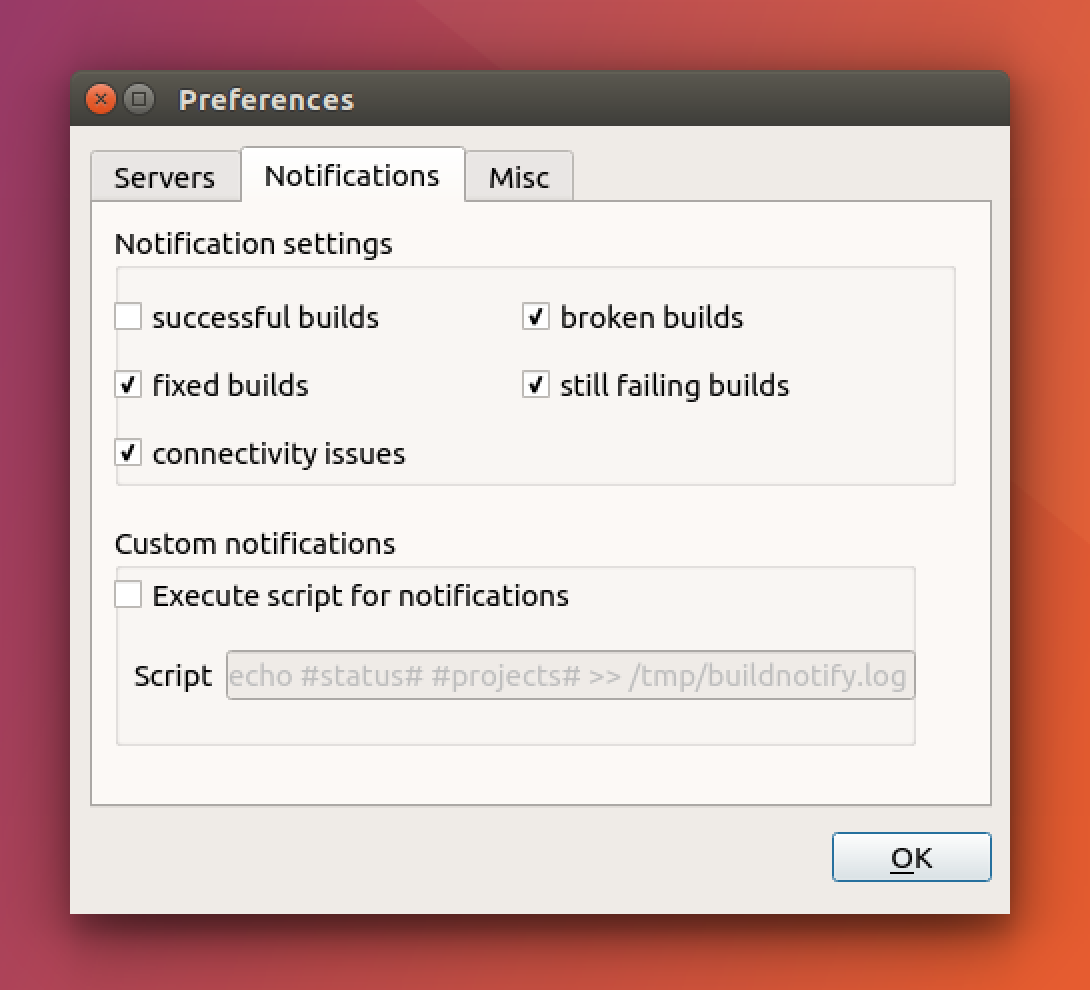
The Notifications tab picks which events notify you (passes, fails, is fixed, fails again, a server can't be reached) and can run a custom script on each notification.
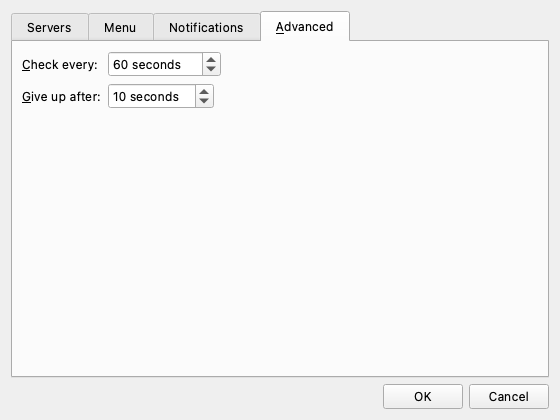
The Advanced tab sets how often servers are checked and how long to wait before giving up on a request.
The sort order applies within each section of the tray menu. Failing first, the default for new installs, puts projects that are building at the top of their section and then shows the newest builds first. Name and last build time sort the whole section that way. An install from an earlier version keeps the sort order it had.
Both dialogs work from the keyboard. Tab moves through the fields in reading order, the underlined letter in a label or button is its Alt shortcut, Enter saves and Esc cancels. In the server list, Ins adds, Enter edits and Del removes.
The full list of fields, ranges and defaults, the command line options and the settings file locations are in the Reference.